Will your flight stick, HOTAS or yoke work with MSFS?
Pick a platform and an exact model. The X56 and T.16000M are PC-only, some Airbus quadrants and pedals work only through a compatible stick, and the PS5 list is short. The Xbox sections below go deeper on connections.
Check a model
The table below has every answer. Xbox Cloud Gaming is a no for all of them: Microsoft lists Xbox controllers and touch or gyro inputs for cloud play, not USB flight hardware.
All models by platform
Answers are for MSFS 2024 unless a note says otherwise. “No official path” means Microsoft and the maker publish nothing that supports it, which is not the same as a tested failure. The PS5 hub covers PlayStation in more detail.
| Model | Xbox | PS5 | PC |
|---|---|---|---|
| T.Flight Hotas One MSFS Edition | Yes. Microsoft lists PC/Xbox. | No. Xbox edition. PS5 uses the Hotas 4 or 5. | Yes. Microsoft lists PC/Xbox. |
| T.Flight Hotas 4 | No. PlayStation model. Microsoft lists it for PlayStation. | Yes. Named by Microsoft at the PS5 launch. | Yes. Thrustmaster lists PC compatibility. |
| T.Flight Hotas 5 MSFS Edition | No. Sold for PS5, PS4 and PC. | Yes. Red or Blue mode. See the Sim Update 6 note. | Yes. Green mode. |
| T.Flight Hotas Neo | No. PlayStation model. Xbox uses the Hotas Neo X. | Yes. Legacy mode uses the Hotas 4 profile. PS5 mode needs a mapping you build. | Yes. NEO mode needs the Thrustmaster driver. |
| T.Flight Hotas Neo X | Yes. Legacy mode uses the Hotas One profile. NEO mode needs a mapping you build. | No. Xbox model. PS5 uses the Hotas Neo. | Yes. NEO mode needs the Thrustmaster driver. |
| TCA Sky Yoke (Xbox/PC) | Yes. Recognized automatically in MSFS 2024, per Thrustmaster. | No. Use the PS5/PC version. | Yes. Listed for PC by Thrustmaster. |
| TCA Sky Yoke (PS5/PC) | No. Use the Xbox/PC version. | Yes. Recognized automatically in MSFS 2024, per Thrustmaster. | Yes. Listed for PC by Thrustmaster. |
| TCA Yoke Boeing Edition | Yes. Microsoft lists PC/Xbox. | No. Thrustmaster supports PC and Xbox only. | Yes. Microsoft lists PC/Xbox. |
| TCA Sidestick X Airbus Edition | Yes. Set the switch to Xbox. | No official path. No PS5 edition found. | Yes. Microsoft lists PC/Xbox. |
| TCA Sidestick Airbus Edition (non-X) | No. Microsoft lists it for PC only. | No official path. No PS5 edition found. | Yes. Direct USB. |
| VelocityOne Flightstick | Yes. Set Input Mode to Xbox. | No official path. Not on Microsoft’s or Thrustmaster’s PS5 lists. | Yes. Microsoft lists PC/Xbox. |
| VelocityOne Flight (yoke) | Yes. Microsoft lists PC/Xbox. | No official path. Not on Microsoft’s or Thrustmaster’s PS5 lists. | Yes. Microsoft lists PC/Xbox. |
| Honeycomb Alpha XPC | Yes. Bravo and Charlie need the Xbox Hub. | No official path. Not on Microsoft’s or Thrustmaster’s PS5 lists. | Yes. Microsoft lists PC/Xbox. |
| Honeycomb Alpha (original) | No. Honeycomb lists PC/Mac. | No official path. Not on Microsoft’s or Thrustmaster’s PS5 lists. | Yes. Direct USB. |
| Logitech X56 | No. Microsoft marks it PC-only. | No official path. Not on Microsoft’s or Thrustmaster’s PS5 lists. | Yes. Two USB devices. |
| Logitech X52 Pro | No. Microsoft marks it PC-only. | No official path. Not on Microsoft’s or Thrustmaster’s PS5 lists. | Yes. Direct USB. |
| Thrustmaster T.16000M FCS | No. Microsoft marks it PC-only. | No official path. Not on Microsoft’s or Thrustmaster’s PS5 lists. | Yes. Direct USB. |
| Logitech Extreme 3D Pro | No. PC-only stick. | No official path. Not on Microsoft’s or Thrustmaster’s PS5 lists. | Yes. Direct USB. |
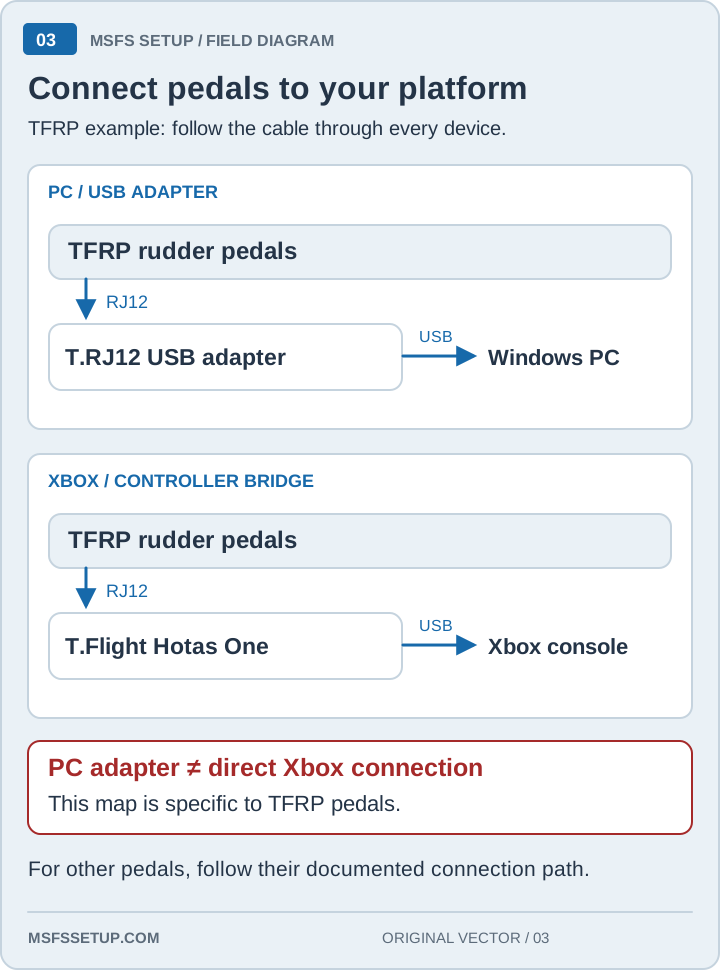
| Thrustmaster TFRP pedals | Yes. Through a Hotas One, Hotas Neo X, Yoke Boeing or quadrant. | Yes. Through the Hotas 4, Hotas 5 or Hotas Neo. The Sky Yoke page also lists TFRP. | Yes. RJ12 to a stick, or the T.RJ12 USB adapter. |
Sources checked October 13, 2026: Microsoft’s compatibility list, peripheral guide and PS5 FAQ, Thrustmaster’s Hotas Neo article, plus the product pages linked in the table. Thrustmaster’s twin editions are explained in the edition guide.
Does the Logitech X56 work on Xbox Series X for MSFS?
No. Logitech X56 does not work on Xbox Series X|S with MSFS 2020 or 2024. Microsoft marks both the X56 stick and throttle as PC-only. Logitech’s technical specifications list Windows 7 through 11 and USB, but no Xbox support.
Do not buy an X56 expecting it to replace a Designed for Xbox HOTAS on Series X|S. For MSFS on the console, start with models Microsoft marks for Xbox, such as the T.Flight Hotas One or Turtle Beach VelocityOne Flightstick in the compatibility matrix below.
Sources checked October 12, 2026: Microsoft’s model compatibility list and Logitech’s X56 technical specifications.
Local install or cloud streaming?
Use full flight peripherals with a local Xbox Series X|S install. For Xbox Cloud Gaming, Microsoft lists Xbox controllers and touch or gyro inputs, not USB HOTAS, stick, yoke, or pedal bridges. If cloud is your only route, keep the supported gamepad and do not buy the hardware below for that use.
An Xbox One or Series-compatible peripheral label is not enough to answer the cloud question. For the supported models and connection paths, use the Xbox compatibility matrix.
Do you need a keyboard and mouse for MSFS on Xbox?
No. You can fly with an Xbox controller. A USB mouse and keyboard are optional, but they make cockpit clicks, search fields, camera commands, and control setup less annoying.
If you are trying the sim for the first time, start with the controller you already own. Add a mouse when selecting small cockpit controls with the gamepad starts slowing you down. Add a keyboard when you want more direct shortcuts than a controller can comfortably hold.
A keyboard and mouse do not replace a flight controller for most people. Microsoft’s current hardware guide still treats a gamepad or flight peripheral as the aircraft-control input. Think of the mouse and keyboard as the easier way to operate the cockpit and the interface around the flight. If you want a separate throttle, see the first HOTAS guide; if your base moves or crowds the keyboard, use the desk-mount guide to check fit before buying a mount.
HOTAS, flight stick, or yoke: what should you start with on Xbox?
Start with a HOTAS or flight stick if you want one setup that works across several aircraft. Choose a yoke when airliners and general-aviation aircraft are the point, not a future maybe.
A flight stick is the easiest fit on a small desk. The Turtle Beach VelocityOne Flightstick keeps its throttle levers on the base, so there is no second unit to place. Turtle Beach also sells a separate VelocityOne H.O.T.A.S. with a Flightstick II and dual throttle; it supports MSFS 2020 and 2024 on Xbox through a direct stick connection and throttle pass-through.
A HOTAS separates the throttle from the stick. The T.Flight Hotas One is the simpler path when you want a detachable throttle and the supported TFRP pedal connection later.
A yoke takes more room and usually leads to a bigger setup. It makes sense when you already know you want Cessnas, turboprops, or airliners and are willing to mount the hardware. Model names matter on Xbox: Honeycomb’s original Alpha is PC/Mac, while Alpha XPC is the current Xbox model. Microsoft’s older list also names an Alpha Flight Controls Pro as PC/Xbox, but Honeycomb’s current catalog does not resolve that label to a current retail model, so check the exact SKU. Bravo needs the Alpha XPC and Xbox Hub. See the exact-model lookup and compare Honeycomb Alpha and Bravo with the VelocityOne Yoke.
| Your situation | Start here | Why |
|---|---|---|
| You are still testing the sim | Xbox controller | No new hardware needed. |
| Small desk, one compact unit | VelocityOne Flightstick | Stick and base levers stay together. |
| You want a separate throttle | T.Flight Hotas One | Detachable throttle and a clear TFRP pedal path. |
| You mainly fly GA or airliners | Xbox-compatible yoke | The control shape matches the aircraft you plan to fly. |
| You only use cloud streaming | Xbox controller | Do not buy USB flight hardware for a cloud-only setup. |
Exact-model Xbox compatibility lookup
These answers are for a locally installed game on Xbox Series X|S. Microsoft’s compatibility list gives model-level platform marks but was last updated before MSFS 2024. Microsoft’s December 2025 MSFS 2024 peripheral guide names newer PC/Xbox recommendations. The connection column follows the manufacturer’s Xbox instructions. A device with a documented Xbox path may still need a different 2024 control profile.
| Exact model | Xbox and MSFS status | Connection on Xbox |
|---|---|---|
| Logitech G X56 Rhino HOTAS | No. Microsoft marks both stick and throttle PC-only; its MSFS 2024 guide also lists X56 as PC. | Two USB devices for PC. No Xbox mode or Xbox connection path. |
| Thrustmaster T.16000M FCS | No. Microsoft’s MSFS peripheral list and 2024 guide identify it as PC hardware. | Direct USB to PC; no Xbox path documented. |
| Thrustmaster TCA Sidestick Airbus Edition (non-X) | No. Microsoft lists the non-X TCA Sidestick for PC only. | Direct USB to PC; it is not the Xbox Sidestick X. |
| Thrustmaster TCA Sidestick X Airbus Edition | Yes. Microsoft marks it PC/Xbox. Thrustmaster publishes MSFS 2024 Xbox mappings and profile corrections. | Set the switch to Xbox and plug the stick directly into the console USB port. Avoid hubs and extensions. |
| Thrustmaster TCA Quadrant Airbus Edition and Add-On | Yes, through the TCA Sidestick X. Thrustmaster documents the Xbox path and an MSFS 2024 profile correction. | Connect the quadrant to a USB-A port on the Sidestick X. The add-on quadrant attaches to the main quadrant. Neither is a standalone Xbox controller. |
| Thrustmaster TCA Yoke Boeing Edition | Yes. Microsoft lists it for PC/Xbox in its MSFS 2024 guide; Thrustmaster publishes Xbox instructions and 2024 mappings. | Set the rear switch to Xbox and connect the yoke directly to the console USB port. |
| Thrustmaster TCA Quadrant Boeing Edition | Yes, through the TCA Yoke Boeing. Thrustmaster documents this Xbox path and an MSFS 2024 Xbox fix. | Connect the quadrant to the yoke’s USB-A port for play. Connecting it straight to Xbox works for calibration only. |
| Thrustmaster T.Flight HOTAS One | Yes. Microsoft lists PC/Xbox and Thrustmaster publishes MSFS 2024 Xbox mappings. | Set the switch to Xbox and connect the HOTAS directly to the console. Its RJ12 port also supports TFRP pedals. |
| Honeycomb Alpha Flight Controls (original) | No. Honeycomb lists the original as PC/Mac; Microsoft’s compatibility list does not mark it for Xbox. | Direct USB to PC. The original Alpha does not become the XPC through a cable or hub. |
| Honeycomb Alpha Flight Controls XPC | Yes. Honeycomb and Microsoft’s MSFS 2024 guide list Xbox support. | Connect the XPC directly to Xbox by USB. The yoke works by itself; add the Xbox Hub for Bravo or Charlie accessories. |
| Honeycomb Bravo Throttle Quadrant | Yes, only with Alpha XPC and Xbox Hub. Honeycomb lists Xbox support; Microsoft’s MSFS 2024 guide lists Bravo for PC/Xbox. | Plug Bravo into the Xbox Hub, the Hub into Alpha XPC, and Alpha XPC into Xbox. Bravo alone is not an Xbox controller. |
| Turtle Beach VelocityOne Flight (yoke system) | Yes. Microsoft’s MSFS 2024 guide lists the Flight system for PC/Xbox; Turtle Beach supports the Xbox console connection. | Connect the yoke system directly to Xbox by USB. |
| Turtle Beach VelocityOne Flightstick | Yes. It is on Microsoft’s Xbox list, and MSFS 2024 release notes include its Xbox default profile. | Connect by USB and set Input Mode to Xbox. This is the Flightstick, not the separate Flightdeck. |
| Turtle Beach VelocityOne H.O.T.A.S. (Flightstick II + Dual Throttle) | Yes. Turtle Beach lists MSFS 2020 and 2024 for Xbox Series X|S. It is not for Xbox Cloud Gaming. | Connect Flightstick II to Xbox with the included USB-C to USB-A cable; connect the Dual Throttle to the stick’s USB-C pass-through with the included USB-C cable. |
| HORI Premium HOTAS Flight Stick (MBS-015U) | Xbox/MSFS 2020: yes. HORI’s compatibility list names Microsoft Flight Simulator but does not distinguish the 2024 version. | Connect the stick to Xbox USB. HORI says a first-party or licensed Xbox controller must also be connected for Flight Mode. |
| Logitech/Saitek Pro Flight Yoke System | No. Microsoft’s list and MSFS 2024 guide identify the Logitech yoke as PC-only. | Direct USB to PC; no Xbox path documented. |
| Turtle Beach VelocityOne Flightdeck | No. Microsoft’s MSFS 2024 peripheral guide lists Flightdeck as PC. | PC model; do not confuse it with VelocityOne Flight or Flightstick. |
Honeycomb Alpha Pro note: Microsoft’s older compatibility list separately marks “Alpha Flight Controls Pro” for PC and Xbox, but Honeycomb’s current catalog does not explain which current retail SKU that name identifies or state its MSFS 2024 support. Verify the full label and Xbox path with the seller. The current documented Honeycomb Xbox yoke is Alpha XPC.
For the TCA Airbus quadrant connection, see our Airbus quadrant setup guide. The Honeycomb Bravo guide explains the Alpha XPC and Xbox Hub path.
Rudder pedals: which work on Xbox, and where do they plug in?
A pedal set can be Xbox-compatible through a licensed stick or yoke even when its own USB cable is meant for PC. Do not treat the PC USB adapter as an Xbox bridge.
| Pedal model | Xbox and MSFS status | Connection path |
|---|---|---|
| Thrustmaster TFRP / T.Flight Rudder Pedals | Yes through supported Thrustmaster hardware. Microsoft’s 2024 guide lists TFRP for Xbox; Thrustmaster publishes a 2024 Xbox mapping. | RJ12 to T.Flight HOTAS One or TCA Yoke Boeing. It can also connect to a TCA Airbus or Boeing quadrant when that quadrant is attached to its supported Xbox base. The T.RJ12 USB adapter is for PC only. |
| Thrustmaster TPR Rudder | Xbox connection documented; MSFS 2024 support unclear. Thrustmaster documents the pedal with compatible Xbox sticks/yokes, while Microsoft’s 2024 guide lists TPR as PC. | USB-A to a TCA Sidestick X or TCA Yoke Boeing; the TCA Boeing quadrant can also bridge through the yoke. Not direct to Xbox for in-game use. |
| Turtle Beach VelocityOne Rudder | Yes through the VelocityOne Flight system; Flightstick support needs a separate cable. Turtle Beach names MSFS 2020 and 2024. | Use the included pass-through cable to connect Rudder to VelocityOne Flight, then Flight to Xbox. For Flightstick, request Turtle Beach’s additional USB-C pass-through cable. The Flight system needs current firmware. |
| Honeycomb Charlie Rudder Pedals | Yes through Alpha XPC and Xbox Hub. Honeycomb states Xbox and MSFS 2024 support for this combination. | Connect Charlie to a USB-A port on the Xbox Hub; connect the Hub to Alpha XPC and the XPC to Xbox. |
| Logitech Flight Rudder Pedals | No official Xbox path found. Microsoft’s MSFS 2024 guide lists these as PC pedals. | Direct USB for PC. Do not assume the Honeycomb Hub or another brand’s USB pass-through supports them. |
Sources checked October 12, 2026: Microsoft’s peripheral compatibility list and MSFS 2024 peripheral guide; Thrustmaster’s Xbox instructions for the TCA Sidestick X, Airbus quadrant, Boeing yoke, Boeing quadrant, TFRP, and TPR; Honeycomb’s Xbox compatibility page; Turtle Beach’s VelocityOne H.O.T.A.S. specifications, MSFS 2024 Flightstick Xbox profile notes, and VelocityOne Rudder specs; and HORI’s MBS-015U compatibility list.
Can you use an Xbox controller and flight controls at the same time?
Yes, and keeping the gamepad connected can be useful for menus, cameras, or cursor control. The catch is duplicate bindings: two devices can both be assigned to the same flight axis or button.
Connect the flight hardware before opening the sim, then check each detected device in the Controls menu. Keep the controller for the jobs you actually use it for. Remove duplicate pitch, roll, yaw, and throttle assignments from whichever device should not fly the aircraft.
If the plane moves without your input, the camera jumps, or the throttle fights itself, do not start shopping for a replacement. Check for the same command on two connected devices first. The MSFS HOTAS setup checklist covers the longer binding sequence.
What should you plug in first, and in what order?
Connect supported flight hardware to the Xbox before launching MSFS, let the sim detect it, then check the device profile before changing bindings. Add pedals only through the connection path supported by that controller.
- Install and update MSFS on the Xbox Series X|S if you plan to use USB flight hardware.
- Close the sim before connecting a new flight controller.
- Set any hardware Xbox/PC selector to Xbox.
- Connect the stick, HOTAS, or yoke directly as its manufacturer instructs.
- Launch MSFS and open the Controls menu.
- Confirm that each connected device appears separately.
- Test pitch, roll, yaw, and throttle before changing a long list of buttons.
- Save a separate profile before experimenting with sensitivity or bindings.
- Add rudder pedals only through the supported bridge. For TFRP on Xbox, that means RJ12 into a supported Hotas One path, then USB from the controller to the console. The PC USB pedal adapter is not a substitute for that bridge.
If the hardware is missing from the Controls menu, re-check the exact model, console selector, cable path, and local-install requirement before resetting profiles. See the rudder pedals setup guide for the pedal path.
Why are controls doubled or not responding?
First confirm that MSFS is installed locally and your exact model is Xbox-compatible. If the hardware has an Xbox/PC selector, set it to Xbox, then check for duplicate assignments across connected devices.
- Nothing appears in Controls: confirm that the device is an Xbox-compatible edition, not a similarly named PC model. Close the sim, reconnect the hardware, then relaunch.
- Stick works but pedals do not: check the pedal bridge. A PC USB adapter may not be the Xbox path.
- Aircraft moves on its own: search pitch, roll, yaw, and throttle across every active device. Remove duplicate axis bindings.
- Buttons changed after an update or edit: select the profile you intended to use before rebuilding controls.
- Cloud session ignores the peripheral: return to a supported gamepad or install the sim locally on Series X|S for full flight-peripheral use.
Before buying a cable, hub, or controller, confirm the model and connection path. The HOTAS setup checklist covers the full bind-test-save process.
Xbox product shortlist
Only compare dedicated flight controls if you are using a local Xbox install and want more direct aircraft control. If you are still testing the sim or use cloud streaming only, keep the controller.
For a yoke, compare the TCA Yoke Boeing Edition and Alpha XPC in the airliner hub. Confirm the exact Xbox edition and connection path before ordering.
Buying through our Amazon links costs you nothing extra and helps keep MSFS Setup free. As an Amazon Associate we earn from qualifying purchases.
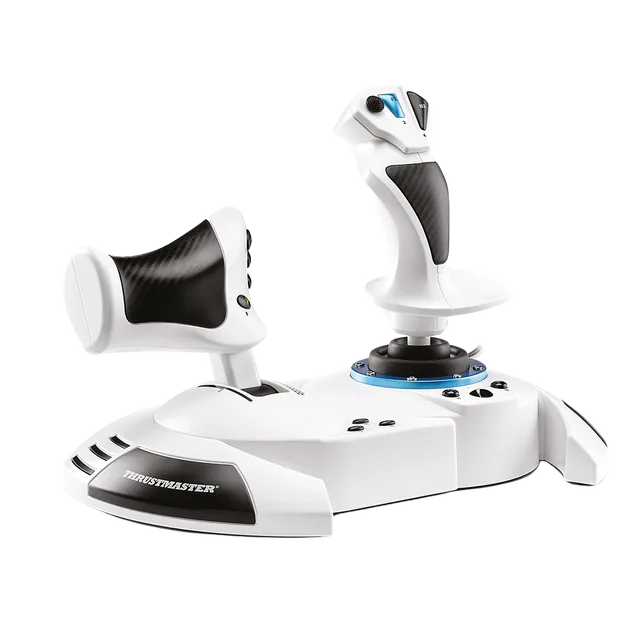
Thrustmaster T.Flight Hotas One MSFS Edition
Primary for a local Xbox install or PC when you want the detachable throttle. Verify the Microsoft Flight Simulator Edition.
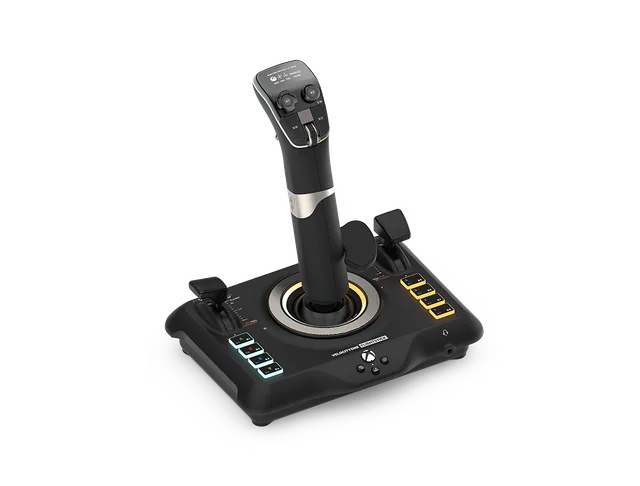
Turtle Beach VelocityOne Flightstick
Compact alternative with integrated levers for a local Xbox install or PC. Confirm it is the Flightstick, not the Flightdeck.
Compare T.Flight Hotas One vs VelocityOne Flightstick for the detachable-throttle split on PC and Xbox.
Xbox controls questions
Can you play Microsoft Flight Simulator on Xbox with only a controller?
Yes. An Xbox controller is enough to start. A USB mouse and keyboard can make cockpit interaction and shortcuts easier, while a supported flight stick, HOTAS, or yoke adds more direct aircraft control.
Do you need a keyboard and mouse for Microsoft Flight Simulator on Xbox?
No. They are optional for Xbox Series X|S. A mouse helps with small cockpit controls, and a keyboard gives you more shortcuts, but neither is required to try the sim.
Can you use a HOTAS with Xbox Cloud Gaming?
Do not buy a USB HOTAS for a cloud-only setup. Microsoft’s current hardware guidance lists Xbox controllers and touch or gyro inputs for cloud play; use a local Series X|S install for flight peripherals.
Can you use an Xbox controller and a HOTAS at the same time?
Yes. Keep the controller for menus or cameras if you like, but check for duplicate pitch, roll, yaw, and throttle bindings across the two devices.
Will any USB joystick work with Microsoft Flight Simulator on Xbox?
No. The exact Xbox-compatible model matters. Check the current compatibility list and the product’s Xbox edition before ordering; similar names can refer to PC-only hardware.
How do rudder pedals connect to Xbox?
Check the pedal maker’s documented connection path. Some pedals connect through a compatible stick or yoke; they are not all standalone Xbox devices.
Does the Logitech X56 work on Xbox Series X for MSFS?
No. Microsoft’s current compatibility list marks the Logitech X56 stick and throttle for PC, not Xbox.
Related comparisons
- For a yoke comparison, see the TCA Boeing and Honeycomb Alpha guide.
- Compare the console pedal bridge paths in TFRP, Logitech, and VelocityOne pedals.