Choose your MSFS controls from the aircraft you fly most.
For mixed flying on PC or Xbox, start with the Hotas One MSFS Edition. Choose a yoke if you mainly fly Cessnas or Boeing airliners, or a sidestick for Airbus. You can learn with one controller and add a quadrant or pedals when you need the extra controls.
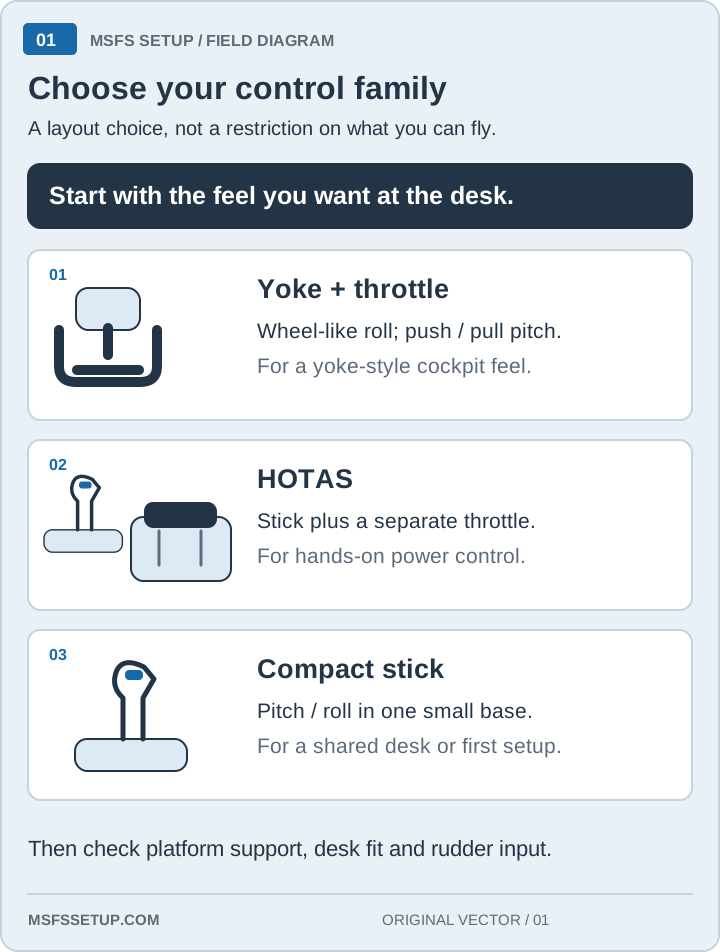
Control-family matrix
Choose from the aircraft you fly most. The same stick can work across MSFS, but its space, throttle, and button demands change when you move from a trainer to an airliner or combat aircraft.
| Family | GA trainer | Airliner | Combat | Platform | Desk / commitment |
|---|---|---|---|---|---|
| Stick | Good trial for pitch, roll, and twist rudder. | Airbus-style sidestick works; less like Boeing. | Enough to try combat, with fewer controls than a HOTAS. | PC. Xbox with a supported model and local install. | One base. Lowest commitment. |
| HOTAS | Good mixed-aircraft choice; the separate throttle helps with power. | Works for mixed flying, but does not match a Boeing yoke layout. | Best fit of these three: separate throttle and more hand controls. | PC. Xbox only with a listed model and local install. | Two units or a joined base. Medium commitment. |
| Yoke + throttle | Matches yoke-equipped GA; a quadrant usually follows. | Best for Boeing-style flying; plan the quadrant as part of the desk. | Poor fit for combat. | PC or Xbox with a supported yoke model. | Front-center yoke plus quadrant. Highest commitment. |
See the PC and Xbox compatibility matrix for current platform paths and connection limits.
Pick a lane
One PC joystick
If you already own a single joystick, compare its one-piece layout with the Hotas One in this PC stick vs. HOTAS guide. If you want a separate throttle, use the first HOTAS buying guide.
HOTAS for mixed aircraft
If you want a stick and detachable throttle in one purchase, the first HOTAS buying guide explains when the T.Flight Hotas One MSFS Edition fits. Compare it with the VelocityOne Flightstick if you prefer integrated base levers.
Compact controls
For one base and built-in levers, start with the VelocityOne Flightstick. For the tradeoff between a single PC stick and a separate throttle, see Extreme 3D Pro vs. Hotas One.
Airliner or yoke
Start at the airliner hub for the TCA Yoke Boeing Edition or Honeycomb Alpha XPC path. An Airbus-first cockpit belongs in the TCA Sidestick setup; the PC Airbus sidestick is not the Xbox Sidestick X.
Add hardware when a control becomes the limit
A stick slider works until power changes need a more deliberate hand movement. Add a separate throttle for a full-hand grip. Choose a quadrant when independent engine, propeller, or mixture levers matter, or when an Airbus setup needs engine detents that match the aircraft. Check the package contents: a yoke does not necessarily include its quadrant.
Rudder pedals move yaw and toe brakes to your feet. Add them when twist rudder starts to limit taxiing, crosswind work, or braking. They are optional when twist or a rocker already does the job. On Xbox, check the connection path before choosing pedals. For helicopter and warbird controls, see the rotorcraft and warbird guide.
Before adding another unit, measure its base, cable clearance, and storage space. A mount that fits your desk may solve a sliding base without replacing the controls. A chair that moves under braking is a separate problem.
For cockpit view control, compare Tobii and TrackIR. If your PC is short on USB ports, use the powered USB hub guide to compare port counts and connection checks.
A sensible upgrade order
- Start with the stick, or a HOTAS if you already know a separate throttle matters.
- Move to a yoke when GA or Boeing-style flying is the main job, not just because the desk looks more complete with one.
- Add a throttle or quadrant when the available levers no longer cover the aircraft you fly.
- Add pedals when twist rudder or braking is the limiting control.
- Mount the hardware when movement or storage, rather than the control family, is the problem.
Compare the whole setup footprint
Use the dimensions for the exact model you are considering, then leave extra room for the clamp, cable bend, and your hands. These figures describe individual products; they are not combined desk-space estimates.
| Control | Platform and package | Manufacturer-stated dimensions |
|---|---|---|
| T.Flight Hotas One MSFS Edition | PC or Xbox; stick with detachable throttle | 13.8 in wide × 7.9 in deep |
| TCA Sidestick Airbus Edition / Sidestick X | Standard model for PC; X model for PC or Xbox | 7.7 in wide × 7.7 in deep |
| TCA Yoke Pack Boeing Edition | PC or Xbox; yoke, quadrant, and desk mount | Yoke: 11.8 in wide × 15.4 in deep. Quadrant: 5.1 in wide × 7.7 in deep. |
| Honeycomb Alpha + Bravo | Original Alpha and Bravo are PC/Mac models; Xbox uses a different compatible Alpha and Hub setup. | Alpha: 10.75 in wide × 16.14 in deep. Bravo: 10.75 in wide × 15.04 in deep. Both figures exclude mounting plate and clamp. |
| VelocityOne Flight | PC or Xbox; yoke and quadrant in one system | 19.01 in wide × 19.5 in deep; desk clamp included. |
Check the airliner hub for yoke and sidestick package differences, and the desk-mount guide before adding a clamp to a shared desk.
Recommended starting points
- First HOTAS buying guideDecide whether a separate throttle fits your first setup.
- MSFS HOTAS setup checklistMount, menu paths, bindings, axis checks, and profile backup.
- Yoke vs joystickPick the control family from the aircraft you fly most.
- Helicopter and warbird controlsMap stick, power, and yaw inputs for specialized aircraft.
- Xbox-compatible flight controlsConsole-licensed stick and HOTAS paths.
Compare control families
Related hubs
For the mixed PC and Xbox lane, use the first HOTAS buying guide to decide whether the model below fits. Use the HOTAS setup checklist for connection and bindings. Still deciding on the control shape? Read yoke vs joystick. For console support, use Xbox-compatible flight controls. For PlayStation 5, see the PS5 controls hub.
Buying through our Amazon links costs you nothing extra and helps keep MSFS Setup free. As an Amazon Associate we earn from qualifying purchases.
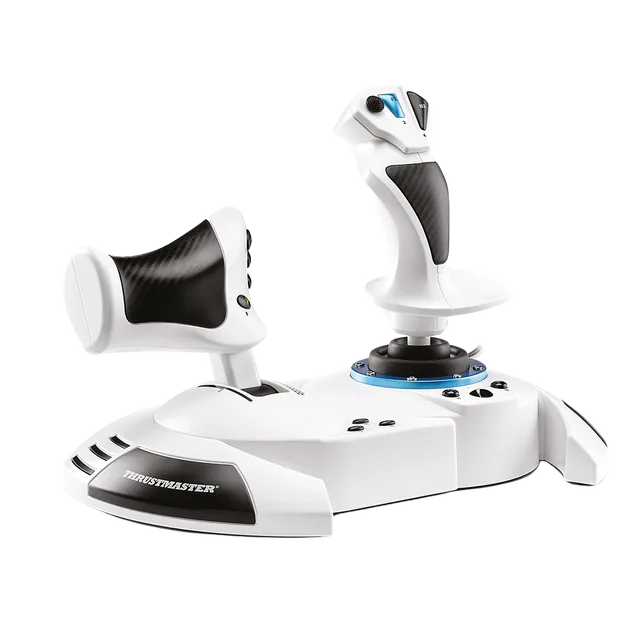
Thrustmaster T.Flight Hotas One MSFS Edition
Mixed PC and local Xbox option with a detachable throttle. Check the exact edition before checkout.