Choose the full Bravo for its autopilot panel and wider lever set. Choose Bravo Lite when you want a simpler throttle unit and do not need the full model's extra panel controls. For Xbox, use the full Bravo with Alpha XPC and the Xbox Hub.
Bravo and Bravo Lite compared
| Feature | Bravo Throttle Quadrant | Bravo Throttle Quadrant Lite |
|---|---|---|
| Lever set | Six configurable levers; general-aviation and commercial lever sets are included. | Four interchangeable levers for general-aviation and commercial setups. |
| Panel controls | Autopilot panel, seven assignable switches, annunciator panel with fourteen lights, and a gear lever. | Gear lever with LED indicator. It does not include the full Bravo autopilot and annunciator panel. |
| Platform path | PC and Mac by USB. Xbox use requires Alpha XPC and the Honeycomb Xbox Hub. | PC and Mac by USB. Honeycomb does not list Xbox support. |
| Dimensions | 10.75 in wide × 15.04 in deep × 7.79 in high. | 10.75 in wide × 12.99 in deep × 4.84 in high. |
Honeycomb gives these dimensions without the mounting plate or metal clamp. The Bravo product page and Bravo Lite product page list the included controls and platform support.
Buying through our Amazon links costs you nothing extra and helps keep MSFS Setup free. As an Amazon Associate we earn from qualifying purchases.
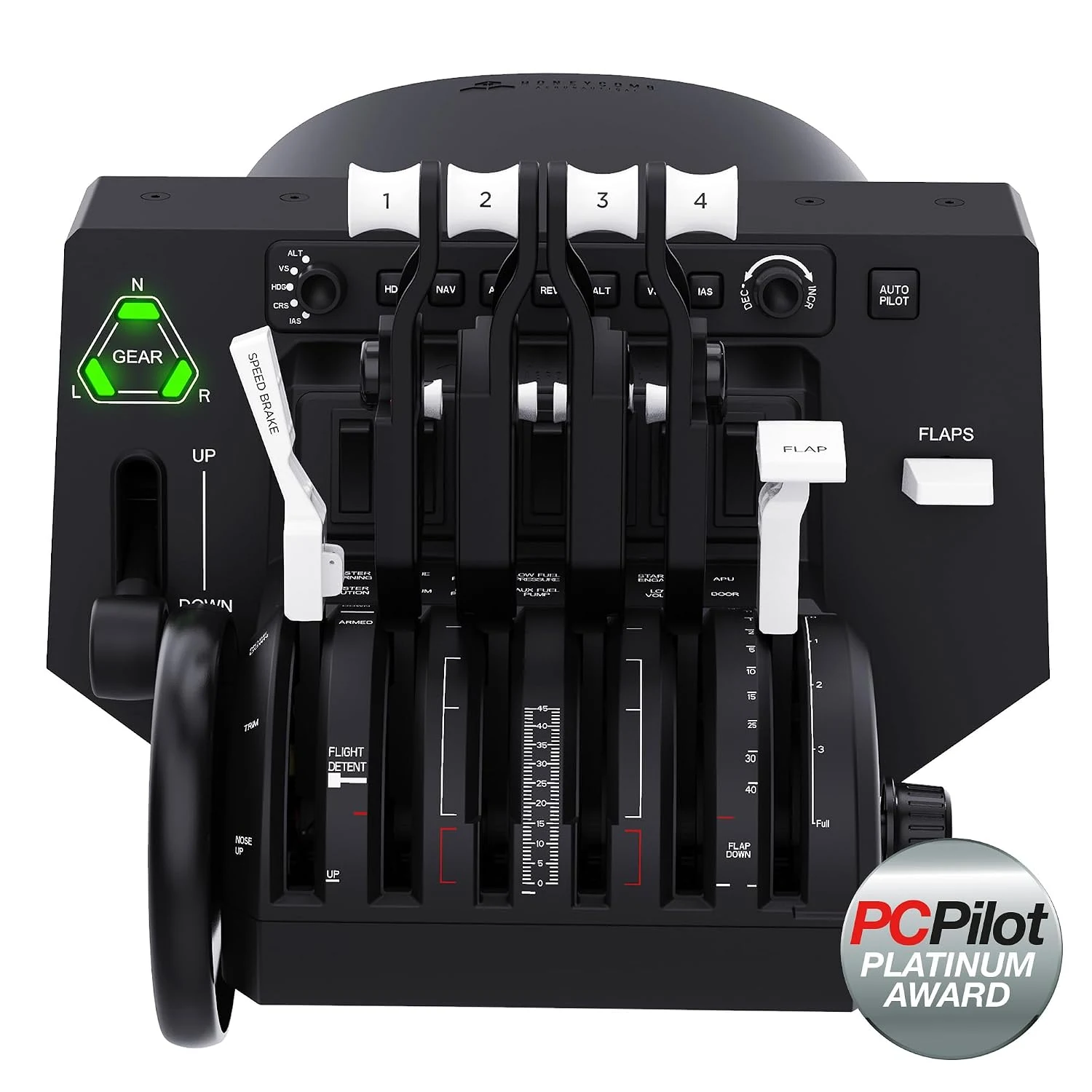
Honeycomb Bravo Throttle Quadrant
Full-size quadrant with interchangeable lever sets and an integrated autopilot panel. For Xbox, add Alpha XPC and the Honeycomb Xbox Hub.
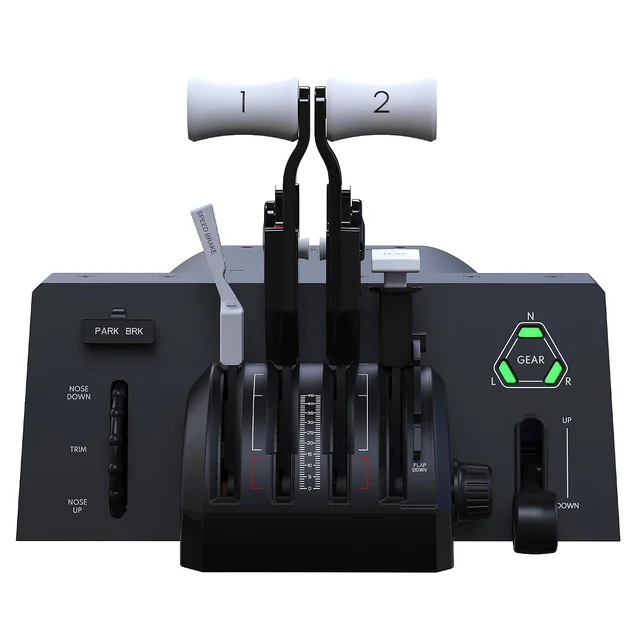
Honeycomb Bravo Throttle Quadrant Lite
Simpler throttle unit with fewer levers and a gear indicator. Honeycomb lists it for PC and Mac.
Connect it on your platform
On PC: connect the Bravo to the computer with its included USB-C to USB-A cable. Honeycomb publishes MSFS 2024 profiles and a landing-gear LED driver on its downloads page.
On Xbox: use the full Bravo only. Connect Bravo to the Xbox Hub, connect the Hub to Alpha XPC, then connect Alpha XPC directly to the console. Honeycomb's Xbox compatibility guide documents this path. Bravo Lite is listed for PC and Mac, not Xbox.
Match the lever layout to the aircraft
| Aircraft type | Start with | Profile check |
|---|---|---|
| Single-engine piston | Throttle, propeller, and mixture controls when the aircraft exposes them. | Assign only the controls used by that aircraft. |
| Twin piston or turboprop | Separate engine power controls; add propeller or condition axes when available. | Move one lever at a time and confirm the correct engine responds. |
| Commercial aircraft | Use the commercial lever set for thrust and the aircraft's flap or spoiler controls. | Use the aircraft profile for reverse thrust and any detents or latches. |
In MSFS, select the Bravo in Settings, then Controls. Search for a command or use Search by Input while moving each lever. Create an aircraft-category or aircraft-specific profile when its assignments differ, then check for duplicate bindings. Microsoft's Controller Settings FAQ explains profiles, input search, and conflicts.
If you are deciding whether the Bravo's autopilot strip covers your needs, compare it with a dedicated panel in our MSFS autopilot panel and Stream Deck guide. The Honeycomb and VelocityOne comparison covers the yoke side of the setup. For an Airbus detent quadrant, see the TCA Airbus quadrant guide.
Honeycomb Bravo setup questions
Can the Honeycomb Bravo connect straight to Xbox?
No. Honeycomb lists the Bravo for Xbox only with Alpha Flight Controls XPC and the Honeycomb Xbox Hub. Connect the Bravo to the Hub, the Hub to Alpha XPC, and Alpha XPC to the console.
Does the Honeycomb Bravo Lite work on Xbox with the Hub?
No. Honeycomb lists Bravo Lite for PC and Mac. The Xbox Hub path applies to the full Bravo with Alpha XPC; it does not add Xbox support to Bravo Lite.