Choose a HOTAS for MSFS combat flying without buying the wrong tier.
For MSFS combat flying, choose T.Flight Hotas One MSFS Edition when you want a detachable throttle on PC or a locally installed Xbox Series X|S copy. Choose VelocityOne Flightstick when integrated throttle and flap levers are enough for a smaller setup.
Start with the first mission
Start with the controls the first mission will repeat. A complete HOTAS keeps power and stick inputs together, while a single stick is a sensible trial when you are still learning the aircraft. Let the controls you reach for decide the first tier.
Compare control layouts
Compare throttle placement and button reach. A detachable throttle gives a separate hand and more travel. An all-in-one stick saves desk space and can keep more hats and buttons nearby. Choose the map you will remember, then confirm the platform path.
Match the controls to the aircraft
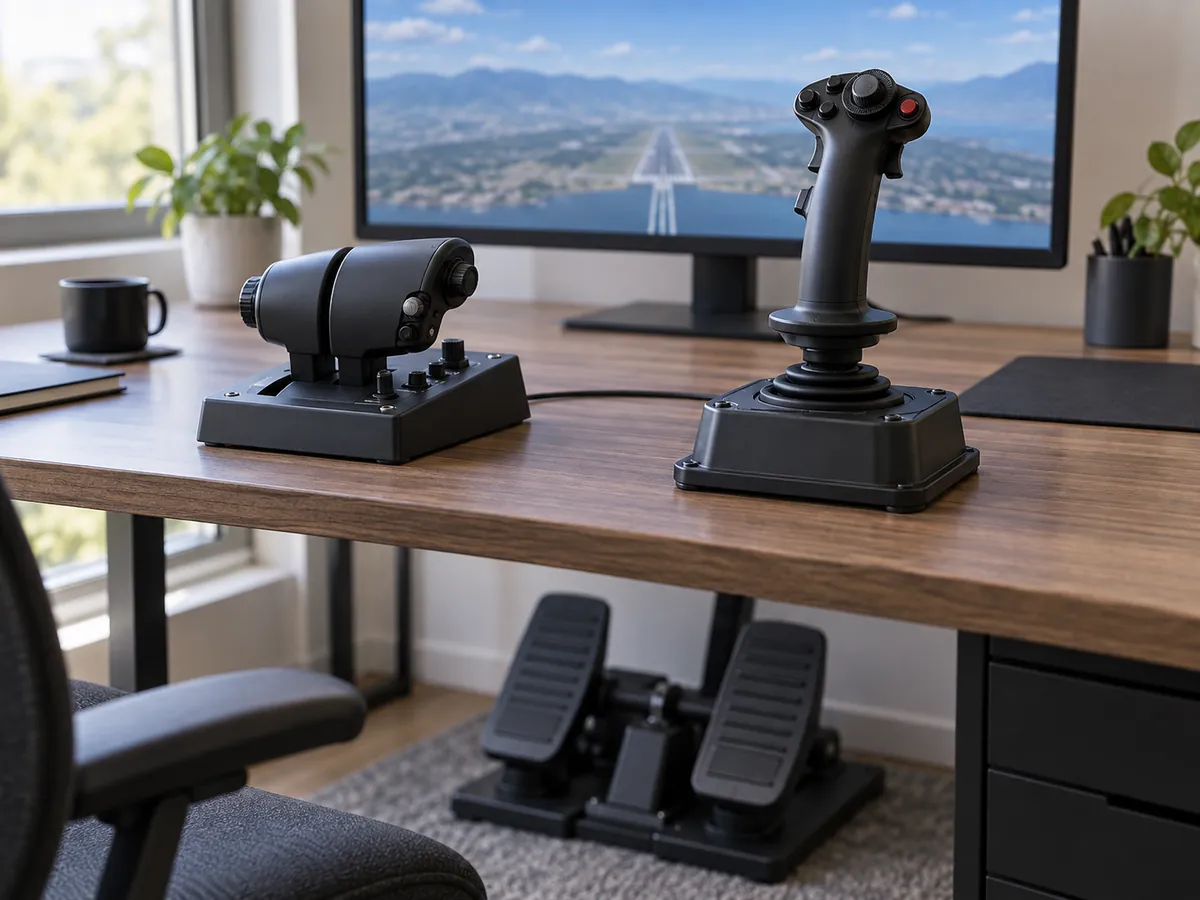
Count the actions you need close to your hands. Trim, views, brakes, gear, flaps, and power are the first test. A stick with a hat switch and throttle slider can cover a starter setup; move to a denser stick or full HOTAS when repeated keyboard trips interrupt the job.
Choose the hardware around the aircraft and commands you actually fly. Extra buttons matter when they replace a repeated keyboard action, not because a box lists a larger number.
If your desk is short on ports or a controller drops out, follow the powered USB hub guide to test the connection before changing controls.
Choose how you will control yaw
Keep one clear owner for yaw. Twist rudder is enough to start. Add rudder pedals when you want yaw and toe brakes on your feet, or when the stick’s twist axis is the part you need to replace in practice.
Do not bind twist, a throttle rocker, and pedals to the same yaw command while troubleshooting. Test one input at a time so you can tell whether the problem is the hardware, the profile, or the aircraft.
For hands-free cockpit view control, compare Tobii and TrackIR.
Keep entry-level gear when it covers your controls
Upgrade when a repeated limit is visible. Keep the current stick if it gives you the axes and buttons you use. Upgrade for a separate throttle, a steadier base, or a different platform path; a desk mount may solve movement without replacing it.
Make one change at a time and retest the profile. A denser control layout can reduce keyboard use, but it also adds more commands to remember and maintain.
Bind by phase of flight
Keep the repeated actions closest to your hands. Put pitch, roll, yaw, and power on the main axes. Use hats or nearby buttons for trim, views, gear, flaps, and brakes. Leave rare commands on the keyboard until a real flight habit proves they deserve a button.
Run a short taxi and circuit after each profile change. If an input surprises you, check the profile and conflict list before changing sensitivity. A stable general profile is easier to extend for a second aircraft than a dense layout that was never tested.
Keep the control map readable
Use a layout you can remember under pressure. Put each class of action in the same area across profiles: axes on the main controls, trim on a hat, views on a thumb switch, and gear or flaps on dedicated buttons. A clear map is worth more than a crowded base.
Write the profile name and the few custom binds in your notes. When you change aircraft, duplicate the general profile and adjust only the commands that differ. That gives you a known fallback when a simulator update or a new controller changes the conflict list.
Buy for the inputs you will bind
Combat flying puts more work on buttons and hats than a trainer does. The axes still matter, but a stick that leaves throttle, trim, view, weapon, and sensor commands on the keyboard will feel limited sooner. If your MSFS combat time is starting to borrow DCS habits, count the commands you want under your hands before stepping up.
Why a separate throttle helps
A separate throttle lets you move power with one hand while the other stays on the stick. That is the practical difference between a HOTAS and a single-base joystick. The first HOTAS buying guide helps decide whether a separate throttle belongs in your setup. For the Logitech Extreme 3D Pro, see the Extreme 3D Pro guide and check platform support for your exact system.
Twist rudder or pedals?
Twist rudder keeps an entry setup small and is a sensible place to start. Move to pedals when yaw needs to stay separate from the stick, when coordinated turns matter more to you, or when toe brakes belong under your feet. Pedals take floor space and add another connection to check, so they are an input upgrade rather than a default purchase.
Mounting is about repeatable hand position
A light base can move when you are working the stick quickly. A desk mount helps when movement, not missing buttons, is the problem. Measure desk thickness, underside clearance, clamp reach, and the exact base before choosing one. If the desk is shared, remember that two mounted units need a storage plan when the sim is off.
When the entry tier stops fitting
The entry tier has reached its limit when you keep reaching for the keyboard, cannot give the commands you use most their own hats or buttons, or need more throttle and sensor controls at once. At that point, more inputs and better sensors are a reason to inspect a higher-tier PC HOTAS. Do not jump there just because a product has a longer feature list; every extra control also needs a bind and a place on the desk.
The combat verdict
The Hotas One is the primary entry lane when a detachable throttle matters on PC or a local Xbox install. The VelocityOne Flightstick is the one-base alternative when integrated levers are enough. Confirm the MSFS Edition and the Flightstick listing before checkout; cloud streaming and the Flightdeck are separate checks.
Buying through our Amazon links costs you nothing extra and helps keep MSFS Setup free. As an Amazon Associate we earn from qualifying purchases.
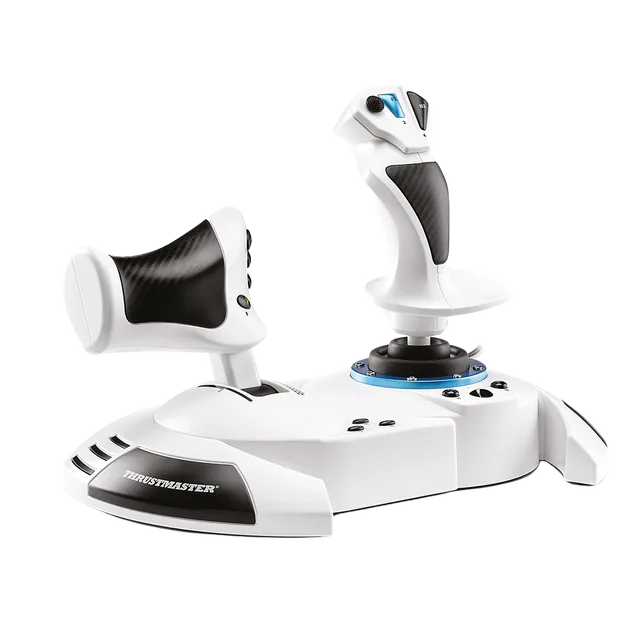
Thrustmaster T.Flight Hotas One MSFS Edition
Primary entry HOTAS for PC or a local Xbox Series X|S install. Verify the Microsoft Flight Simulator Edition.
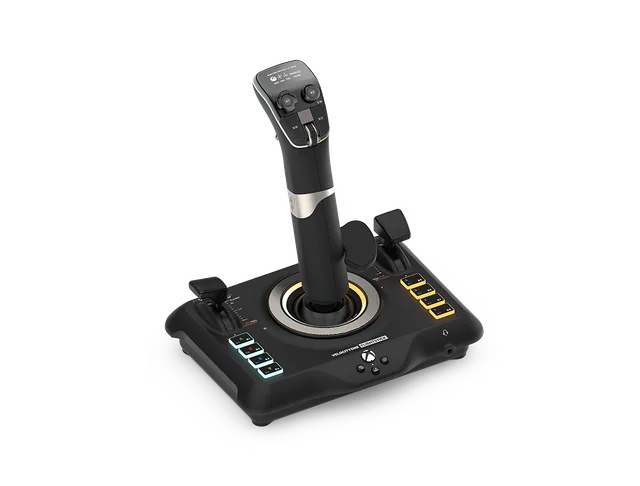
Turtle Beach VelocityOne Flightstick
Compact alternative with integrated levers for PC or a local Xbox install. Confirm it is the Flightstick, not the Flightdeck.