Buying through our Amazon links costs you nothing extra and helps keep MSFS Setup free. As an Amazon Associate we earn from qualifying purchases.
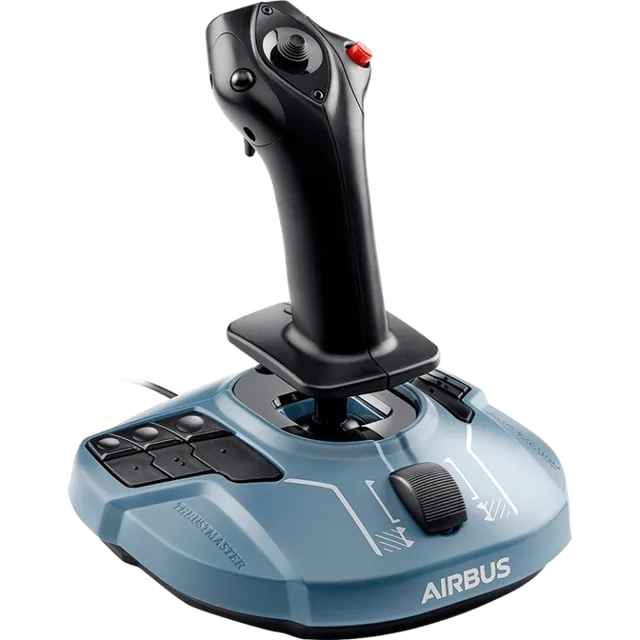
Thrustmaster TCA Sidestick Airbus Edition
PC sidestick with twist-rudder lock.
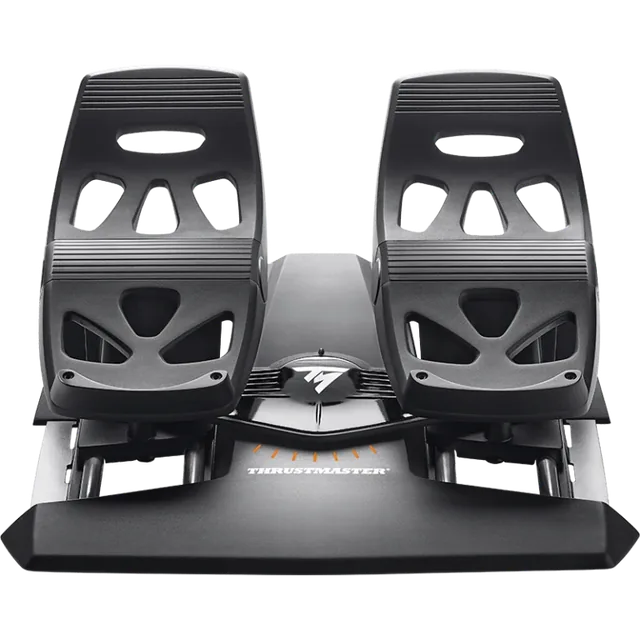
Thrustmaster TFRP Rudder Pedals
Use pedals when you are ready to lock the twist axis.
Throttle, detents and reverse thrust in MSFS 2024
These are owner reports and add-on maker advice, not Thrustmaster guidance. The forum thread is from the November 2024 MSFS 2024 launch; the iniBuilds thread is older and is about its A320neo.
- Throttle shows up as a button. In an MSFS forum thread, owners said the quadrant levers and the flap and spoiler axes acted like on/off buttons. Two fixes were posted. In the binding’s cog menu, pick Throttle LAXIS X (left lever) and LAXIS Y (right lever). On PC, turn off “Enable virtual buttons” in the Thrustmaster Flight Control Panel properties, then recalibrate. An owner on Xbox reported the same problems and no fix.
- Sensitivity curve. The same thread says to check “Tweak action curve” in the cog menu and reset it to default if it still holds a custom curve.
- Reverse thrust or TOGA on its own, iniBuilds A320neo. iniBuilds staff, in a forum thread about Xbox, advise calibrating from the EFB under Options, Throttle Settings: Reset Calibration, then Begin Calibration and confirm each position. If one engine sticks at TOGA or reverse, switch REVERSE ON AXIS to No and back to Yes, calibrate again, and restart the sim. Lever 1 should drive Throttle 1 Axis and lever 2 Throttle 2 Axis, and the EFB detent marks should line up with the hardware.
On Xbox, the quadrant only works through the TCA Sidestick X, and it appears as extra axes on the stick. See the Xbox checklist.
Why this fits Airbus flying
The TCA line is shaped around civil aviation. The grip is compact and offset, with quick-access controls suited to airliner work rather than combat hat-switch routines.
Hall effect pitch and roll sensing is the useful difference from entry potentiometer sticks. The 17 action buttons and POV hat give an A320 add-on room for views, flaps, and autopilot without making the keyboard your primary panel.
This model is for PC. For Xbox, choose the separate TCA Sidestick X Airbus Edition, which provides Xbox support and connections to the matching Airbus throttle and add-ons. The similar name does not make the original stick console-compatible.
Skip this sidestick when
- You want to match a Cessna or Boeing cockpit. Read yoke vs joystick before choosing the control shape. The sidestick can still fly those aircraft.
- You want a separate throttle in the same purchase. Compare the first HOTAS buying guide with the cost of a stick and quadrant.
- No desk space for quadrant. The sidestick works alone, but pairing it with the Airbus quadrant needs more desk room.
- Combat crossover. TCA buttons target airliner flying, not the denser button layout some combat aircraft require.
Specs that affect the fit
| Field | Value |
|---|---|
| Model | Thrustmaster TCA Sidestick Airbus Edition |
| Platform | PC (USB). Xbox requires the separate Sidestick X model. |
| Sensors | Hall effect on pitch and roll |
| Buttons | 17 action buttons + POV hat |
| Rudder | Twist axis with physical lock switch |
| Add-ons | Matching Airbus throttle and add-on modules are separate products |
Lock the twist when pedals arrive
The sidestick can supply rudder until you add pedals. Once pedals are connected, use the physical lock, disable the twist assignment in MSFS Controls, and leave rudder on the pedal axis only. Two active yaw sources make rollout corrections harder to read.
When to add the quadrant
Use the stick's built-in throttle to start. The TCA Quadrant Airbus Edition adds two independent thrust levers with Airbus detents and reverser controls. The Quadrant Add-On supplies the separate flap and speed-brake controls. Our quadrant setup guide explains the package split, Xbox connection, and MSFS bindings.
Add the quadrant when you want those engine controls under your other hand. There is no need to replace a working stick just because you occasionally fly Boeing aircraft.
Mount and desk layout
Configure the ambidextrous grip for the hand you want to use. Put the stick on that side and the throttle within reach of your other hand. Check a desk mount against the base and clamp dimensions if the desktop position is uncomfortable or unstable.
Leave room for the quadrant's full lever travel, any add-on modules, and your keyboard. Test knee clearance before placing pedals under the desk.
Set up an Airbus profile
On PC, open Options → Controls and confirm the TCA Sidestick Airbus appears. Fenix, iniBuilds, and default A320 aircraft expose different bindings, so start with the add-on profile when one is available.
- Map the sidestick quick buttons to autopilot disconnect, autothrottle arm, and pitch sync before you customize views.
- Check pitch and roll at rest, then use the smallest dead zones that suppress unwanted input. Hall sensing does not guarantee perfect mechanical centering.
- Assign flaps and speed brake to the add-on modules if you buy them; the engine quadrant alone does not include those levers.
- Save separate profiles for the default A320 and study-level add-ons because button counts differ.
What to add next
Choose a quadrant for independent thrust controls, its add-on modules for flap and speed-brake levers, or pedals for foot-operated yaw. Buy the part you need next. A first HOTAS is an alternative complete setup if you have not bought controls yet; see the buying guide before choosing one. You do not need a second stick for occasional GA flying.
Manufacturer page: Thrustmaster TCA Sidestick Airbus Edition